How to Convert PNG to DST File Format for Embroidery Machine Guide
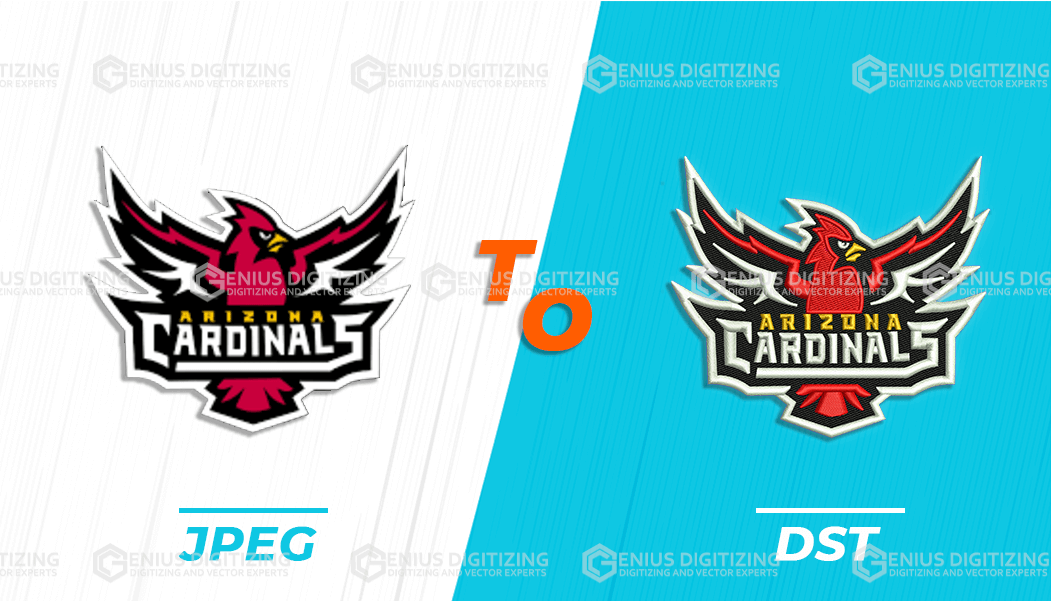
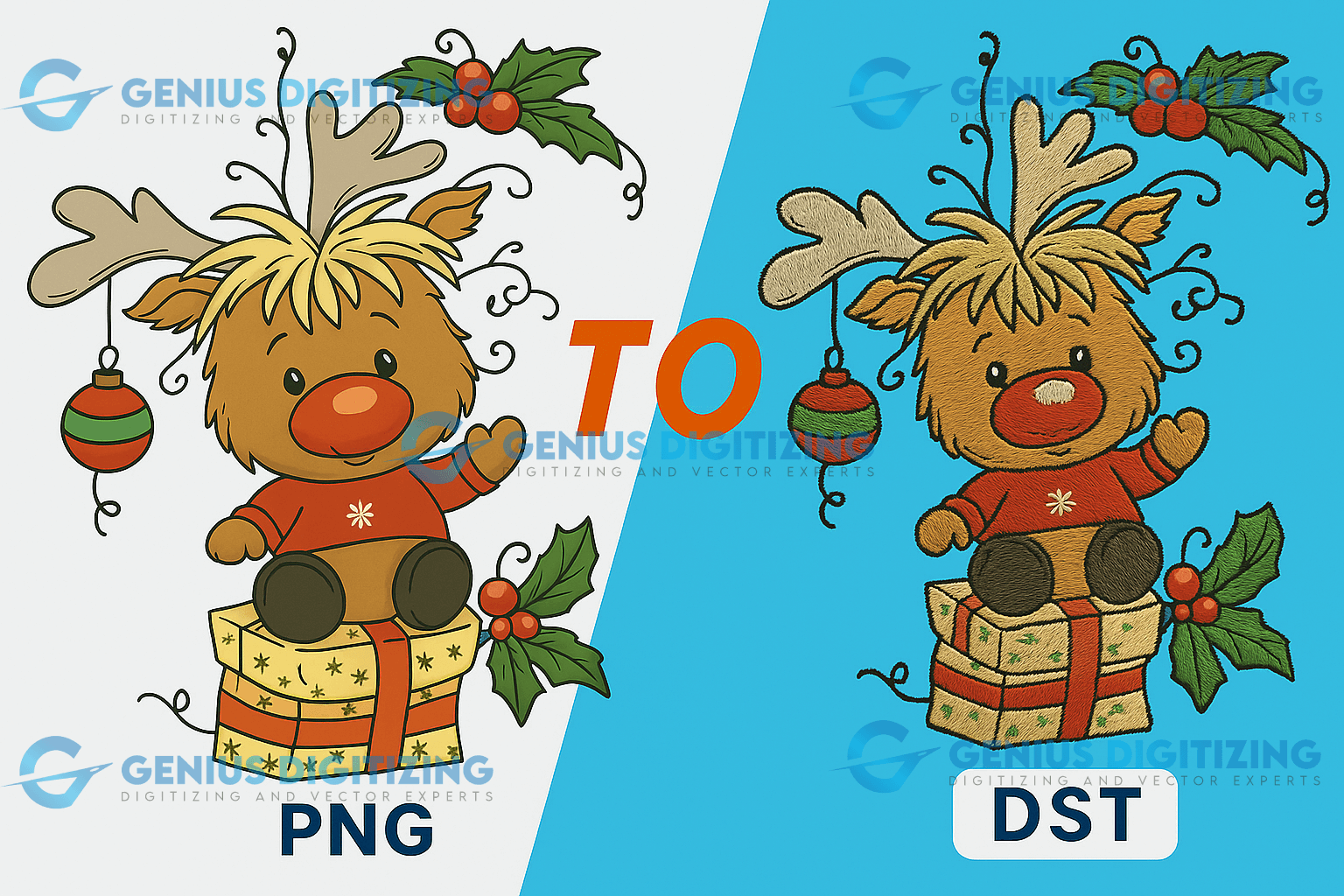
Converting an image to an embroidery file is not as simple as changing a file extension. While a PNG file is a high-quality graphic made for digital displays, a DST file contains exact stitch coordinates, jump commands, and stop signals for commercial embroidery machines.
Whether you need to convert a transparent PNG, JPG logo, or vector PDF into a stitchable format, this step-by-step guide explains how the conversion process works, what software to use, and how to prepare your artwork for flawless stitching.
Key Takeaways
- PNG vs DST: PNG files store pixels and transparent backgrounds; DST files store machine stitch instructions.
- Transparent Advantage: PNGs with transparent backgrounds are easier to digitize because design borders are clearly defined.
- Software Options: You can use professional software (Wilcom, Hatch, Embird) or free open-source tools (Ink/Stitch).
- Manual vs Auto-Digitizing: Automated tracing works for basic shapes, but commercial logos require manual digitizing to prevent puckering.
- Always Test: Run a test sew-out on scrap fabric before beginning bulk garment production.
What Is the Difference Between PNG, JPG, and DST Files?
Before converting your design, it is essential to understand why image graphics cannot be loaded directly into an embroidery machine:
| File Format | Data Type | Primary Function in Embroidery |
|---|---|---|
| PNG | Raster Pixels (Transparent) | Ideal source graphic; transparent backgrounds eliminate unwanted background stitches. |
| JPG / JPEG | Raster Pixels (Solid) | Common image format; requires background removal before tracing. |
| PDF / SVG | Vector Paths | Scalable vector graphics; easiest format to convert directly into stitch paths. |
| DST Format | Stitch Coordinates & Commands | Universal industrial machine format (Tajima standard) that controls needle movements. |
Why Convert PNG to DST for Embroidery?
PNG (Portable Network Graphics) is one of the best raster image formats for embroidery digitizing. Because PNG files support lossless compression and transparent backgrounds, digitizers can isolate logo elements without having to manually erase white background boxes.
However, an embroidery machine cannot read pixel color data. Rebuilding a PNG into stitch commands—setting satin stitches for borders, Tatami fill for large areas, and run stitches for details—is required before your machine can sew the design onto fabric.
How to Convert PNG to DST Step-by-Step
Follow these 7 steps to convert your PNG graphic into a machine-ready DST file:
Step 1: Prepare Your High-Resolution PNG Artwork
Ensure your PNG image is clean, sharp, and at least 300 DPI. Remove any unwanted background colors or gradients, and resize the artwork close to the actual dimensions you intend to embroider (e.g., 3.5 inches wide for a left-chest polo logo).
Step 2: Choose Your Embroidery Digitizing Software
To convert raster images into stitch paths, you need dedicated software. Popular choices include:
- Wilcom EmbroideryStudio / Hatch: Industry-leading professional software for precise manual digitizing.
- Ink/Stitch: A free, open-source embroidery extension for Inkscape ideal for beginners converting vector paths to DST.
- Embird & SewArt: Popular entry-level image-to-stitch wizard utilities.
- Adobe Illustrator / CorelDRAW: Used alongside embroidery plugins to prepare clean vector artwork first.
For a detailed breakdown, check our guide on how to select the best embroidery digitizing software.
Step 3: Import the PNG File into the Workspace
Open your digitizing software and import the PNG image into the design canvas. Lock the image layer so it stays anchored while you trace or auto-convert the artwork.
Step 4: Digitize the Image (Set Stitch Paths & Density)
Transform the design elements into active stitch layers:
- Satin Stitches: Assign to lettering, outlines, and narrow borders.
- Fill Stitches (Tatami): Assign to large interior background areas.
- Underlay & Pull Compensation: Add underlay stitching to anchor the fabric and adjust pull compensation based on fabric type (e.g., knits, cotton, or fleece).
Step 5: Export and Save as DST Format
Once pathing and color stops are set, export or save the finished design as a .DST file. This generates the raw X-Y coordinate commands required by commercial equipment.
Step 6: Run a Test Sew-Out
Never send a new file directly to a customer order. Load the DST file into your machine and run a sample test on scrap fabric with similar backing/stabilizer to verify thread tension and alignment.
Step 7: Transfer the DST File to the Embroidery Machine
Load the finalized DST file onto a USB drive, direct network link, or wireless machine terminal, assign your thread colors on the machine console, and begin production.
Frequently Asked Questions (FAQ)
Can I convert PNG to DST for free online?
Free automated online converters exist, but they use basic algorithmic tracing. They frequently create messy jump stitches, incorrect stitch density, and fabric puckering. For complex logos or commercial orders, professional embroidery digitizing services or open-source software like Ink/Stitch are recommended.
Why does my DST file show wrong colors when opened?
DST files do not store RGB color values—they only store "Color Stop" commands. Your embroidery software or machine display will show default placeholder colors until you manually assign thread spools on your machine's color sequence screen.
Is PNG better than JPG for embroidery digitizing?
Yes. PNG files support transparent backgrounds, which allows digitizing software to detect outer boundaries cleanly without mistaking a white background box for a solid stitched fill.
Final Thoughts
Converting a PNG to DST is a critical bridge between digital graphic design and physical apparel embroidery. While auto-digitizing software can handle basic shapes, custom logos and commercial products require careful attention to stitch types, underlay, and density.